
Company profile
Set your company profile in bluprnts — name, industry, currency and base location — the details every figure and report is framed around.
Your company profile is the identity behind the forecast — the name on your reports, where the business is based, and the currency every figure is shown in. You set it in your company options, and it saves automatically as you change it.
Open your company options#
In the left sidebar, select your company name at the bottom (the identity row) to open Company options, then choose the Company section. There's no save button — every change is saved automatically ("All changes saved automatically").
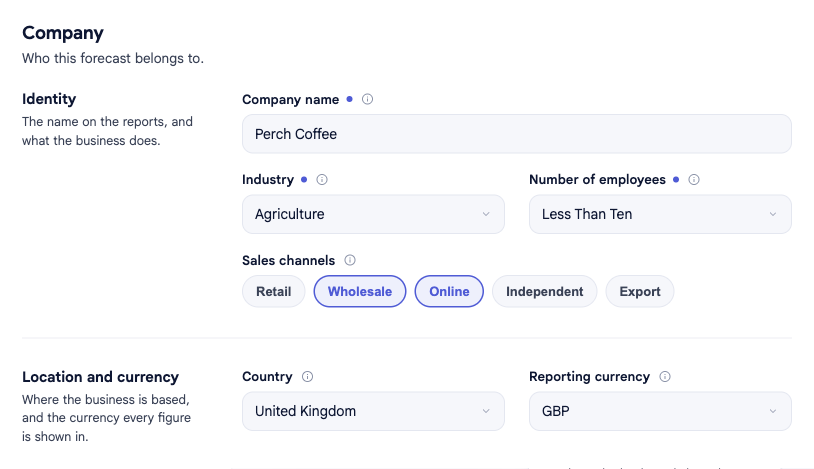
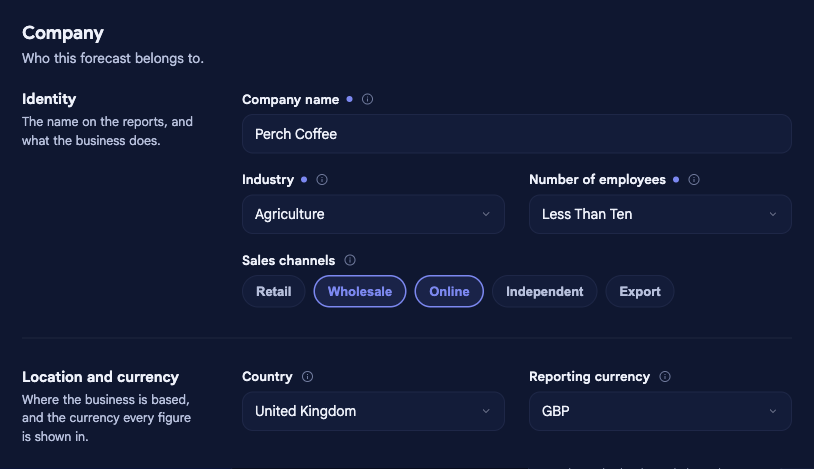
Identity#
- Company name — the name shown across reports and exports; usually your registered trading name.
- Logo — upload one to brand your reports; it appears on report cover pages.
- Industry and number of employees — a size and sector band used to tailor benchmarks and sensible defaults. They don't change your numbers on their own.
- Sales channels — the routes the business sells through. Select all that apply; each sale you add is then attributed to one. See Sales channels.
Location and currency#
- Country — where the business is based. It sets locale defaults for the forecast.
- Reporting currency — every figure in the forecast is shown and calculated in this currency.
Related#
- Forecast window & financial year — when the forecast starts and how long it runs.
- Sales channels — the routes you sell through.
- Build your first forecast — where setting up the company fits in.