
Add or edit financing
Add, edit or delete financing in bluprnts — model a loan (interest and repayments) or an investment (cash in, no repayment) and see it flow into your cash.
Financing is how you fund the business. bluprnts models two kinds, because they behave differently:
- A loan brings cash in now and is repaid over time with interest.
- An investment brings cash in now with no repayment — it stays on the books as equity.
You add both on the Financing page, and each flows into your cashflow, bank balance and runway. This guide adds a loan and an investment, then covers editing and deleting.
1. Open the Financing page#
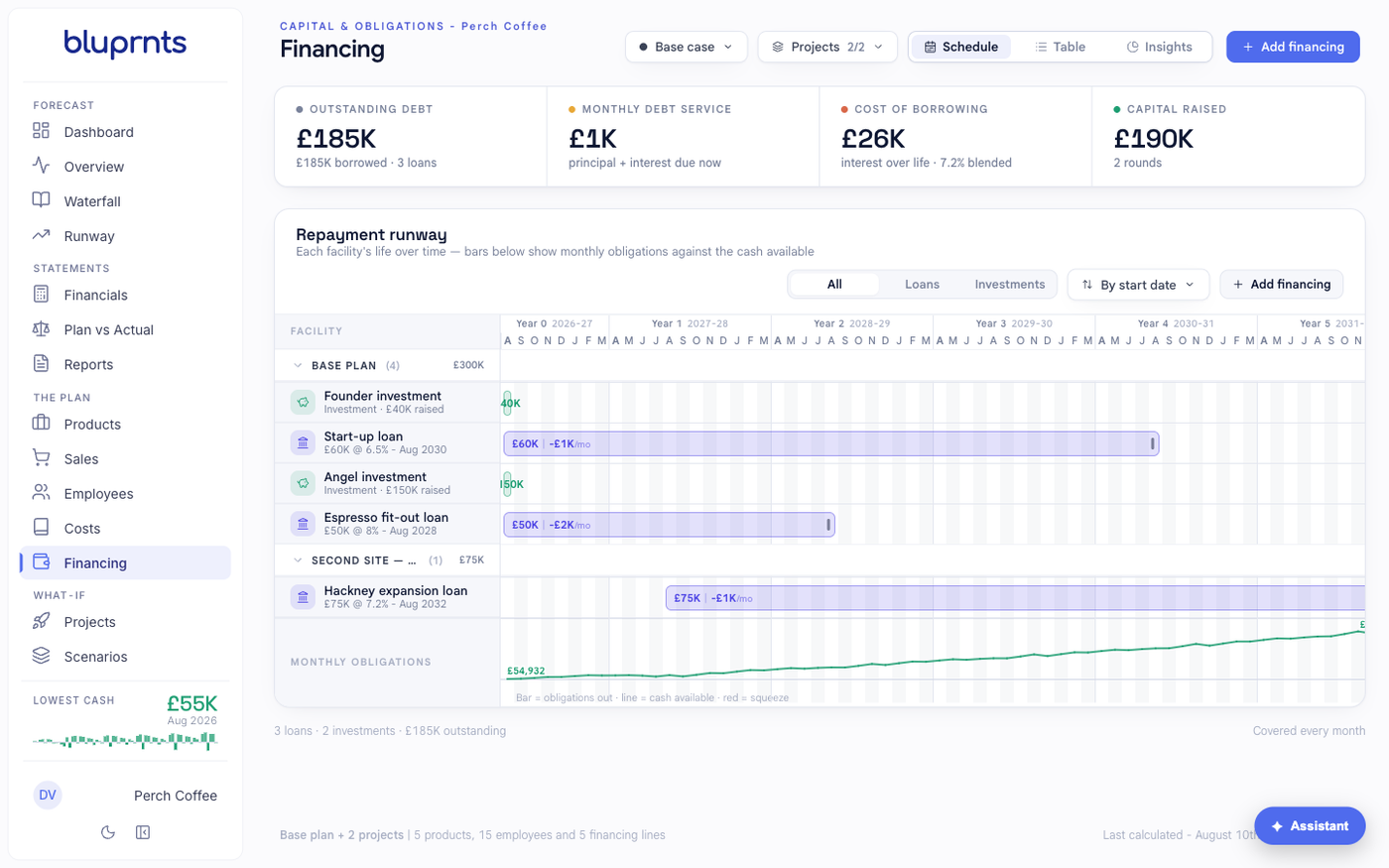
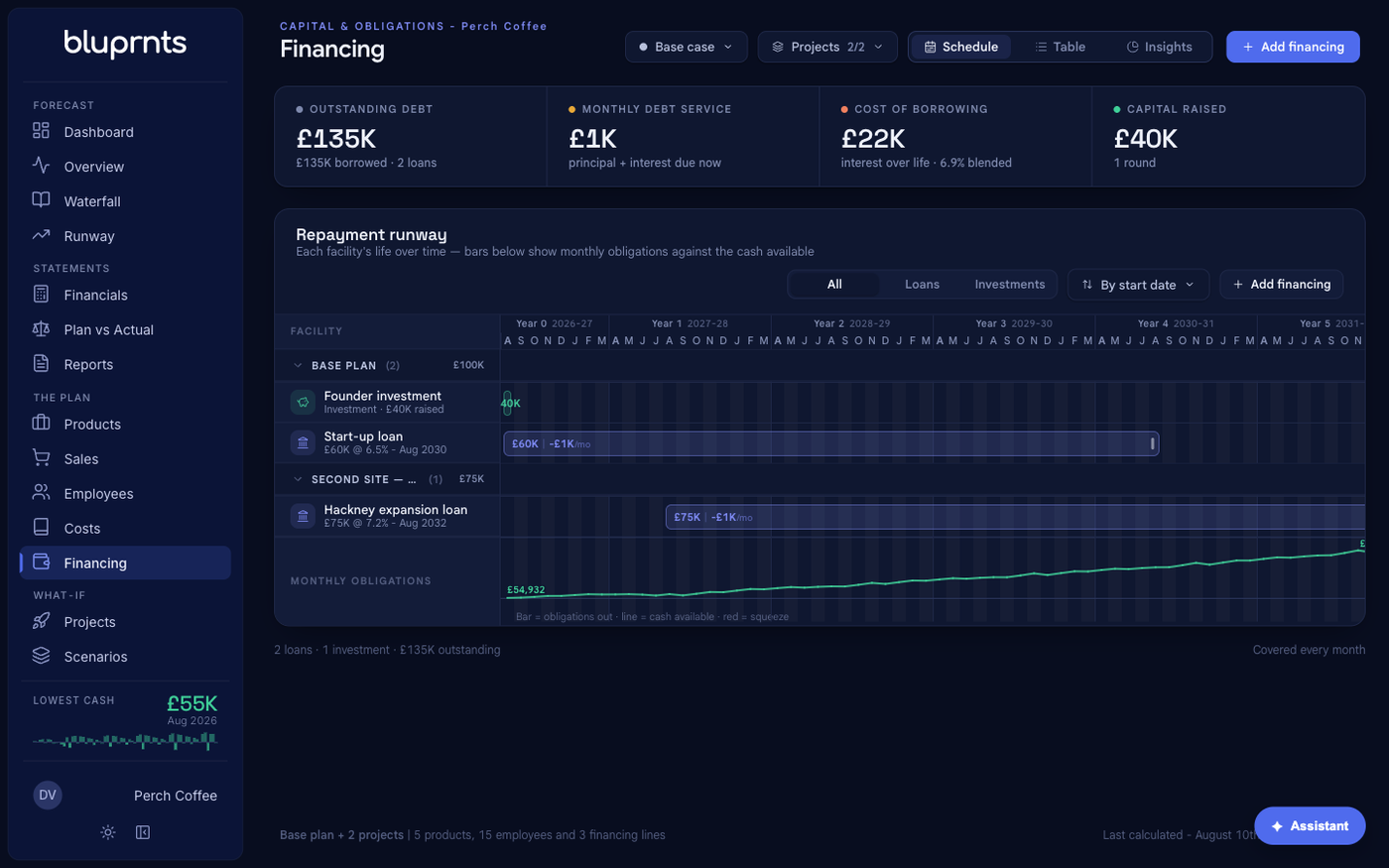
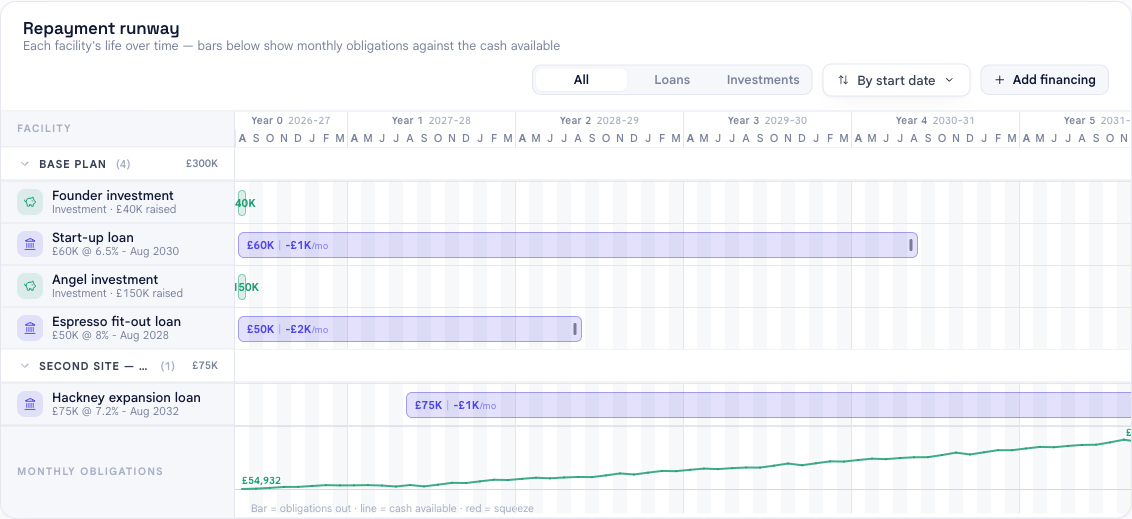
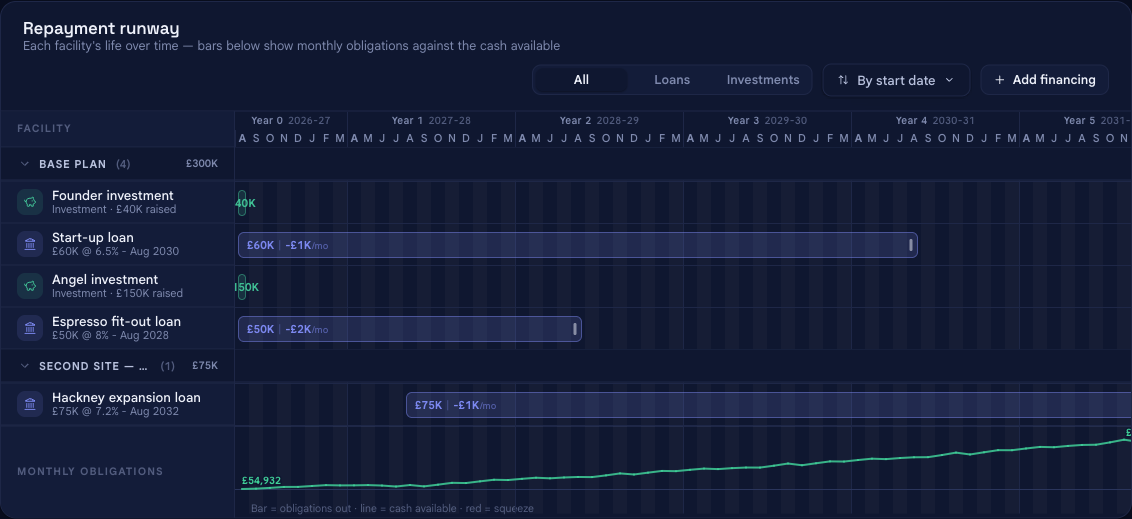
In the left sidebar, under The plan, select Financing. You will see your facilities on a timeline, with summary figures across the top — outstanding debt, monthly debt service, cost of borrowing and capital raised.
Select Add financing in the top right to open the panel.
2. Choose the type: loan or investment#
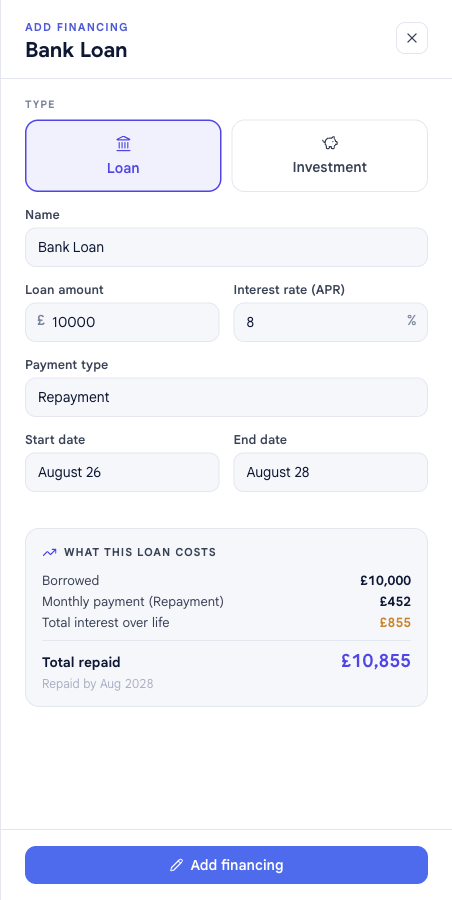
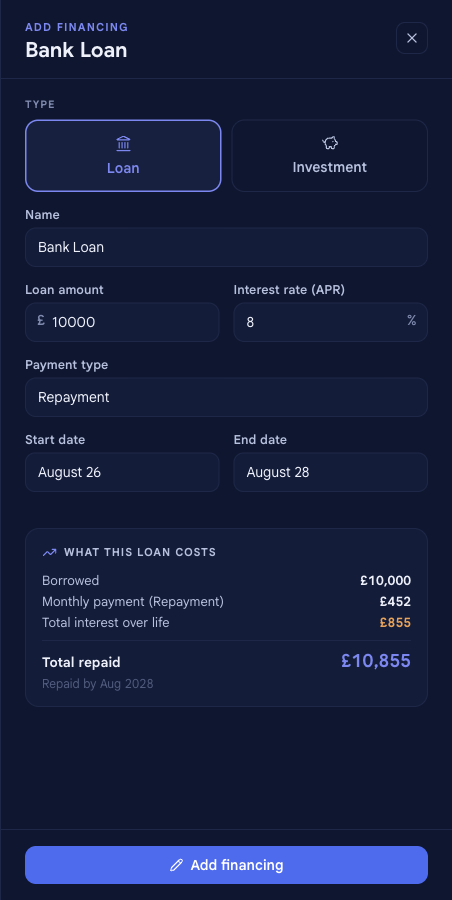
The first choice — Loan or Investment — decides which fields you see and how the facility behaves in your forecast. The rest of the panel changes to match.
3. Add a loan#
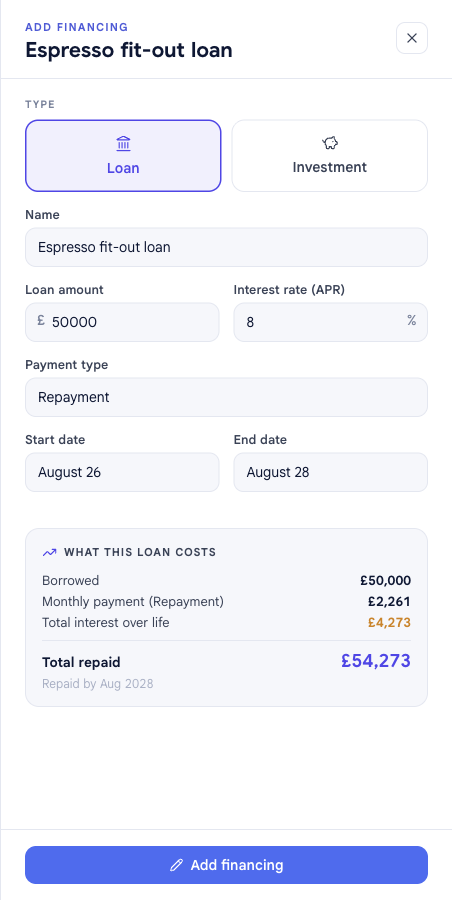
With Loan selected, fill in:
- Name — e.g. Espresso fit-out loan.
- Loan amount and interest rate (APR).
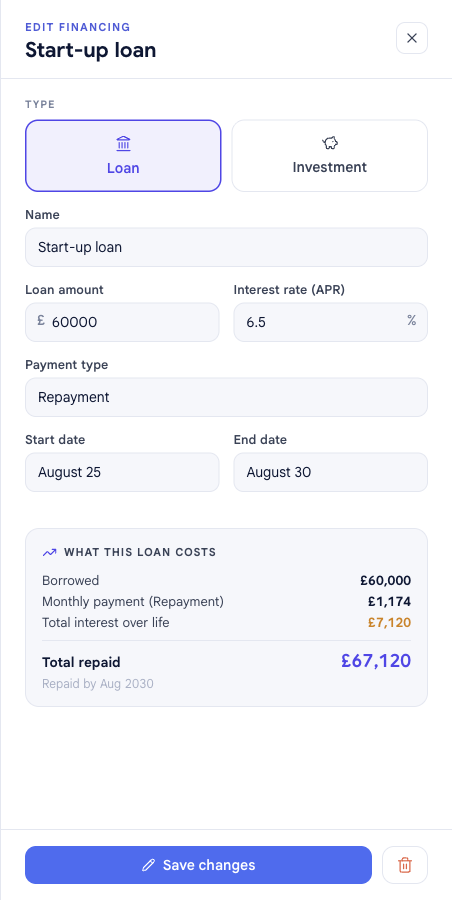
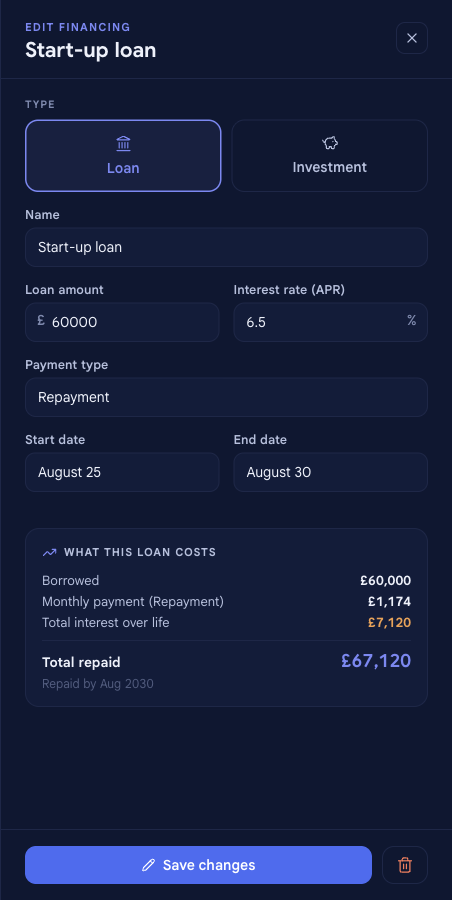
- Payment type — Repayment (principal and interest each period) or Interest-only + balloon (interest each period, principal repaid at the end).
- Start date and end date — when the money arrives and when it is fully repaid.
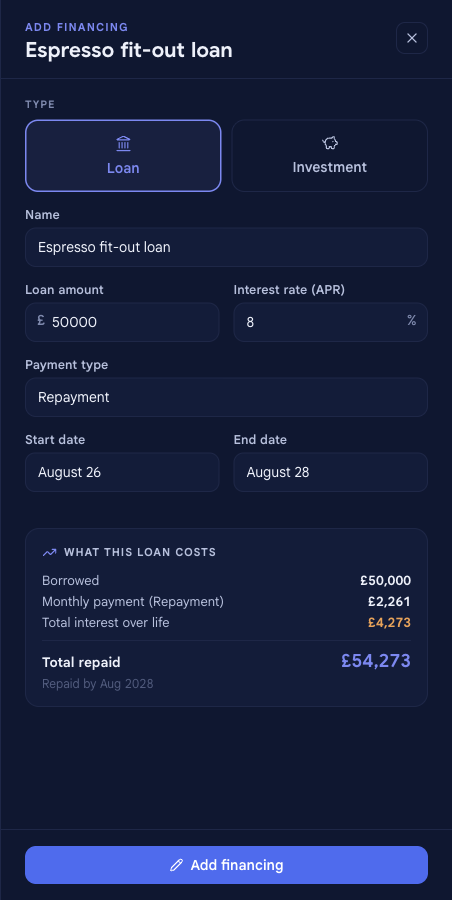
The What this loan costs panel works out the monthly payment, total interest over the life, and total repaid, updating as you type. Select Add financing to save.
4. Or add an investment#
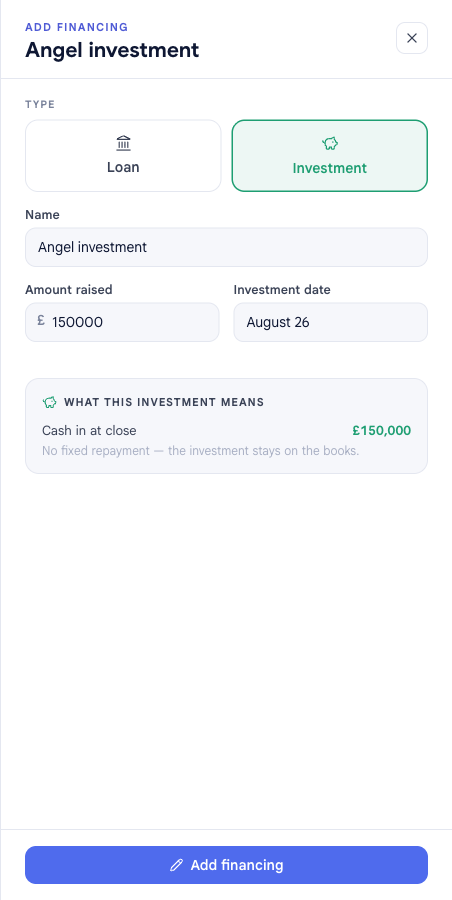
Switch the type to Investment and the loan fields fall away — an investment has no interest, repayments or term. Fill in:
- Name — e.g. Angel investment.
- Amount raised and the investment date.
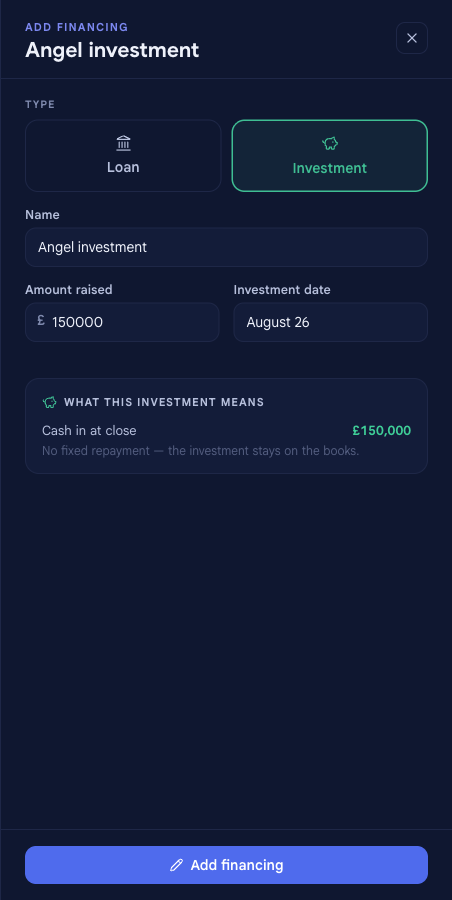
The What this investment means panel confirms the cash in at close and that there is no fixed repayment — it stays on the books. Select Add financing to save.
Your facility in the forecast#
The panel closes and the facility appears on the timeline immediately. A loan adds outstanding debt and monthly obligations that draw down your cash; an investment adds cash with nothing to repay. Either way, the summary figures, your cashflow, bank balance and runway all update at once.
Edit a facility#
Select any facility on the timeline to reopen the panel, now headed EDIT FINANCING, with its values filled in. Change the amount, rate, dates or type; the live cost panel updates. Select Save changes and the forecast recalculates immediately.
Delete a facility#
While editing, select the trash icon next to Save changes to remove the facility.
To wind a loan down rather than erase it, move its end date in instead of deleting — that keeps the repayments you have already made in your history.
Loan vs investment#
The type you pick in step 2 is the difference that matters most:
| | Loan | Investment |
|---|---|---|
| Cash in | The loan amount, on the start date | The amount raised, on its date |
| Repayment | Monthly over the term (repayment or interest-only) | None — it stays on the books |
| Cost | Interest (APR) over the life of the loan | No interest |
| You set | Amount, interest, payment type, start & end | Amount raised and date |
| In the forecast | Adds debt and monthly obligations that reduce cash | Adds cash, with nothing to repay |
Related#
- Add or edit a cost — for spending, including the interest a loan generates.
- How forecasts are built — how financing and the other drivers become your statements.
- Glossary — definitions for APR, interest-only, equity, runway and other terms used here.