
Add or edit a product
Add, edit or delete a product in bluprnts — set its type, price and unit costs, read the live margin, and build the catalogue your sales draw from.
A product in bluprnts is anything you sell — a physical product, a service, a subscription, or a bundle. You describe its price and unit costs once, on the Products page, and bluprnts shows the unit economics (margin, and what you keep per sale) live as you type. Every sale you forecast draws on a product, so this is where your catalogue lives.
This guide adds a product, then covers editing and deleting one.
1. Open the Products page#
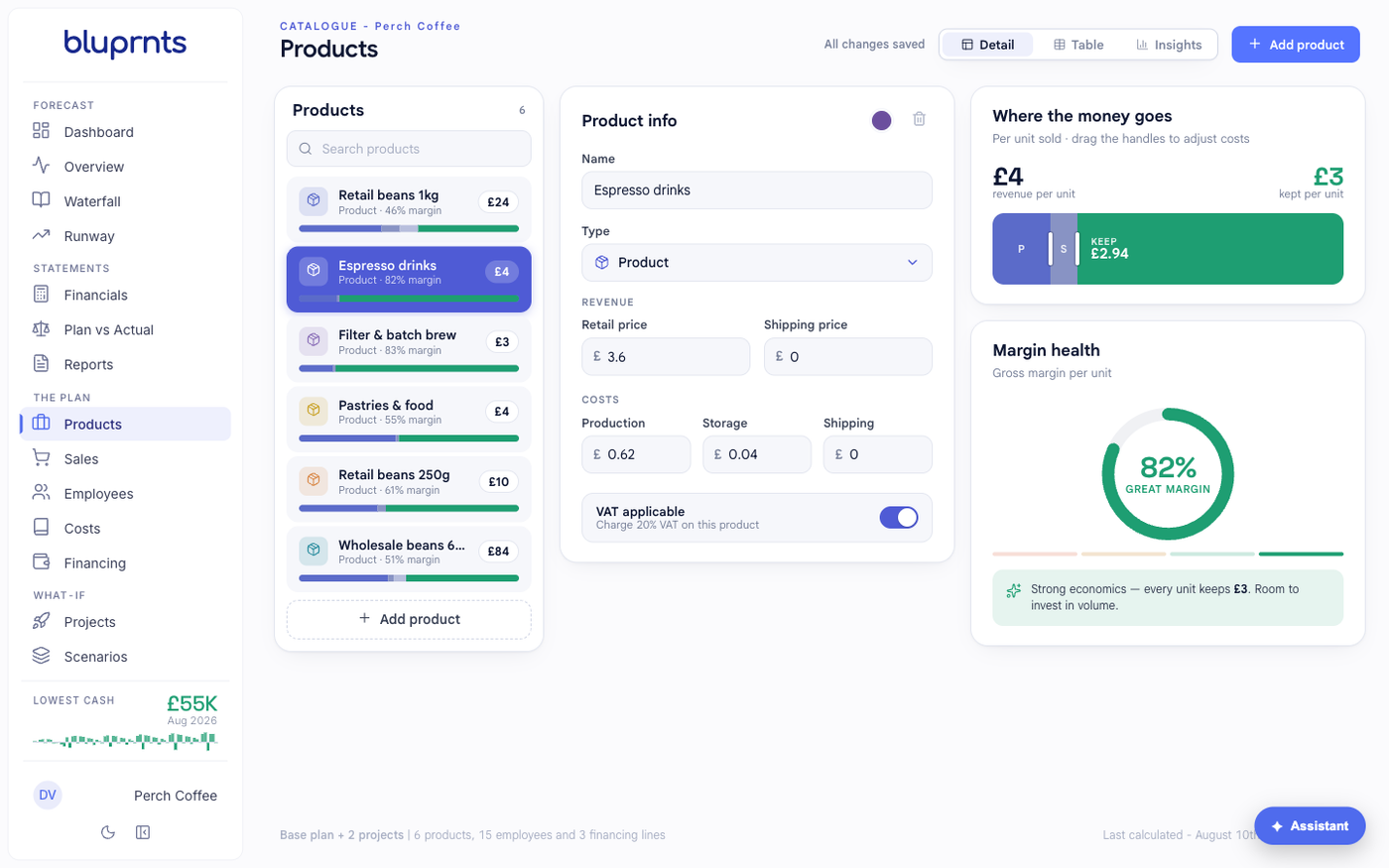
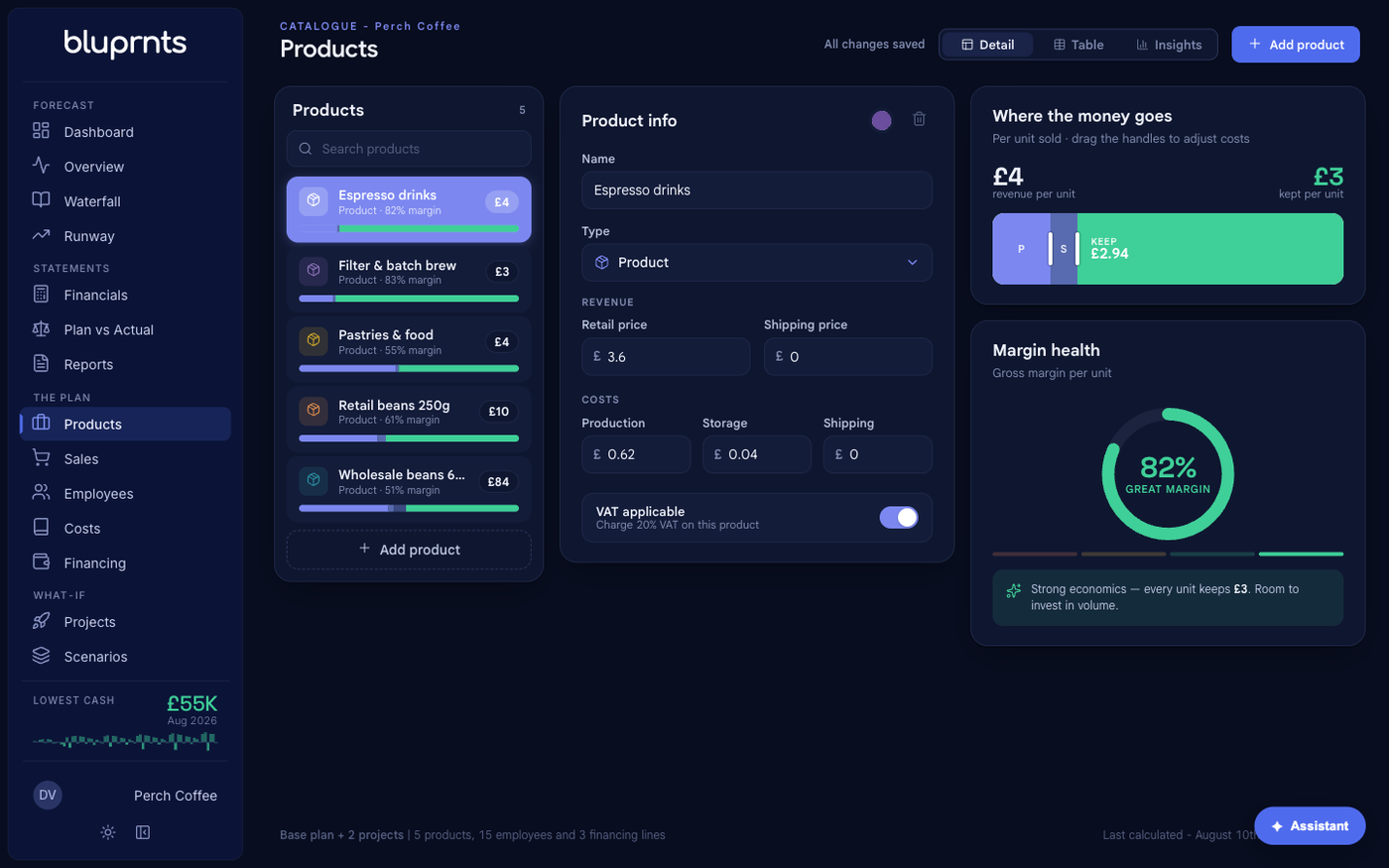
In the left sidebar, under The plan, select Products. The page has three parts: your catalogue on the left, the Product info editor in the middle, and the unit economics for the selected product on the right. There is no save button — changes are saved as you make them (All changes saved).
2. Add a product#
Select Add product. A new product appears at the top of the catalogue and opens in the editor, ready to fill in.
3. Choose the type#
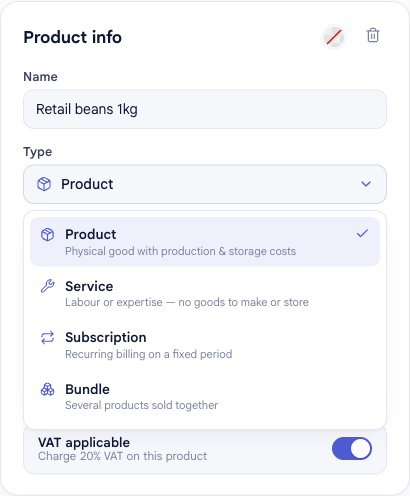
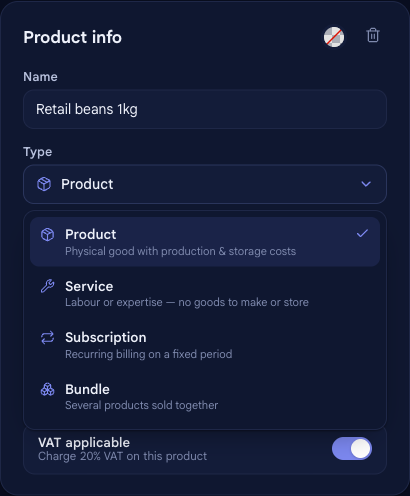
Open the Type picker and choose what kind of thing this is. The type decides which fields you see:
- Product — a physical good, with production, storage and shipping costs.
- Service — labour or expertise; nothing to make or store, so no cost fields.
- Subscription — recurring billing on a fixed period (adds a billing period: monthly, quarterly or annual).
- Bundle — several products sold together; costed like a product.
4. Set the price and costs#
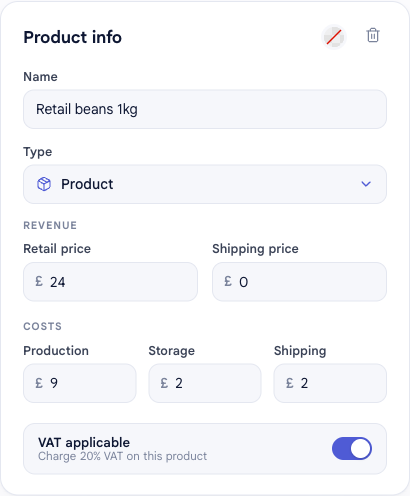
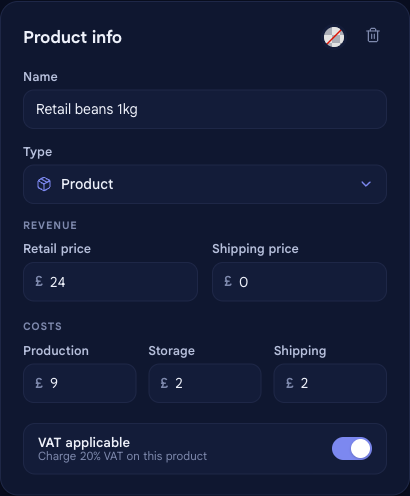
Fill in the Product info editor:
- Name — e.g. Retail beans 1kg.
- Retail price — what you charge (for goods, you can also set a separate shipping price).
- Costs — for a product or bundle, the per-unit production, storage and shipping costs. Services and subscriptions have none.
- VAT applicable — toggle on to charge VAT on this product.
5. Read the unit economics#
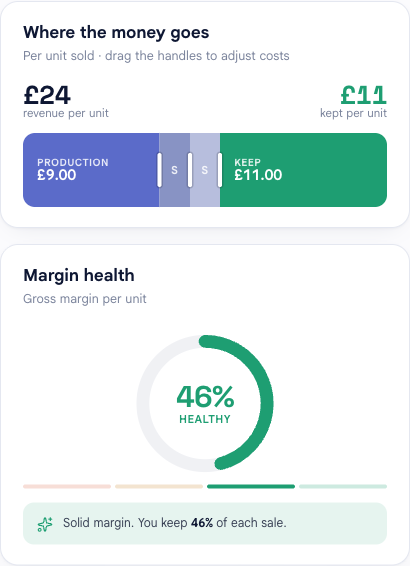
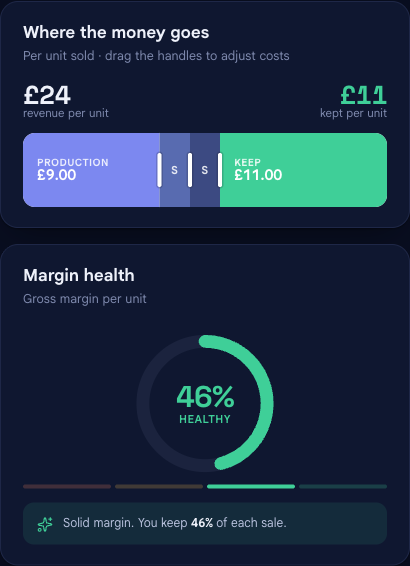
As you type, the right-hand panels show the economics of a single sale:
- Where the money goes — revenue per unit, what each cost takes, and what you keep.
- Margin health — the gross margin percentage, with a plain read on whether the economics are strong.
Use these to sanity-check pricing before you build sales on the product. Nothing to save — it is already stored.
Edit a product#
Select any product in the catalogue to open it in the editor, then change its name, type, price or costs. Edits save automatically and the unit economics update as you go — there is no separate save step.
Delete a product#
Delete a product with the trash icon in the top-right of the Product info editor.
This guard exists because sales are built on products: removing a product out from under them would leave the forecast without its source. To retire a product that is in use, first remove or repoint the sales that use it, then delete it.
The four product types#
The type you pick in step 3 is what decides how a product is costed and billed:
| Type | Cost fields | Billing period | Use it for |
|---|---|---|---|
| Product | Production, storage, shipping | — | Physical goods you make or buy and sell |
| Service | None | — | Labour or expertise — nothing to make/store |
| Subscription | None | Monthly, quarterly, annual | Recurring billing on a fixed period |
| Bundle | Production, storage, shipping | — | Several products sold together |
Related#
- How forecasts are built — how products, sales and the other drivers become your statements.
- Add or edit a cost — for spending that is not the cost of a product.
- Glossary — definitions for gross margin, unit economics, COGS and other terms used here.