
Add or edit a project
Add, edit or delete a project in bluprnts — model a launch, market or new site as a layer you toggle on and off your base plan to see its impact.
A project is a self-contained layer of your plan — a new product launch, a new market, a new site — that you build on top of your base plan and switch on or off to see exactly what it does to the business. It has its own products, sales, people, costs and financing, so you can answer "should we take this on, and can we afford it?" without disturbing the numbers you already trust.
This guide creates a project, builds it, then covers editing and deleting one.
1. Open the Projects page#
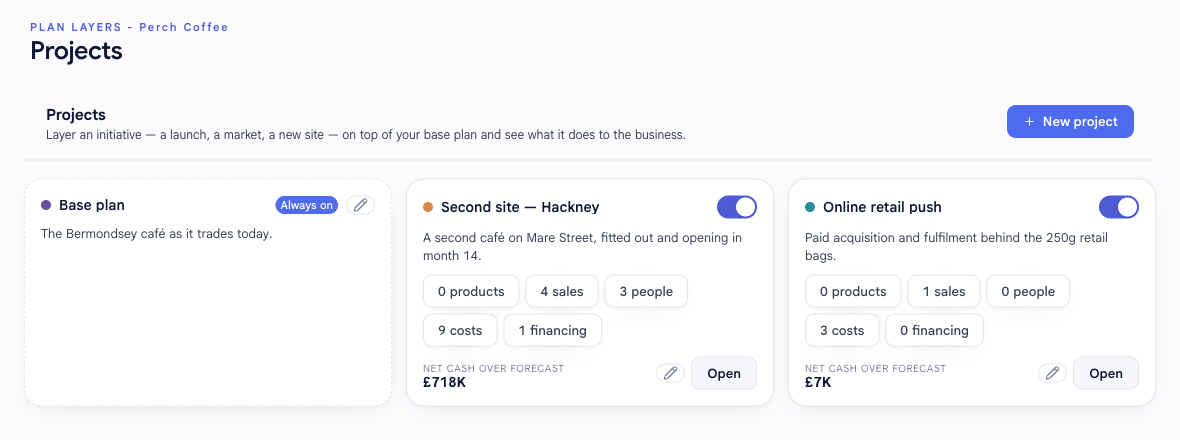
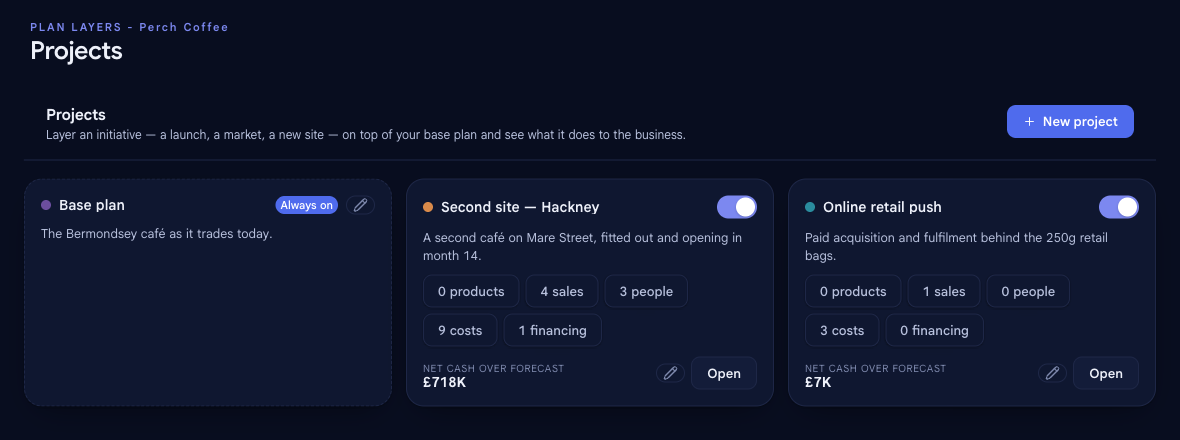
In the left sidebar, under What-if, select Projects. You will see your base plan — your business as it runs today, marked Always on — alongside a card for each project you have layered on top of it.
Select New project in the top right to open the panel.
2. Name the project#
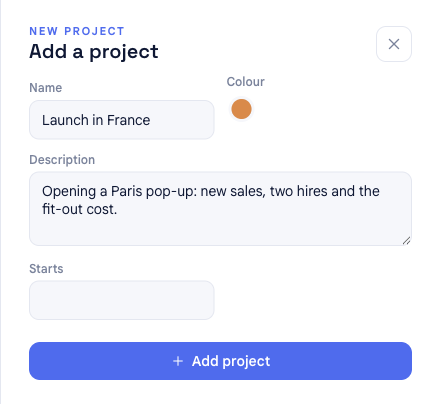
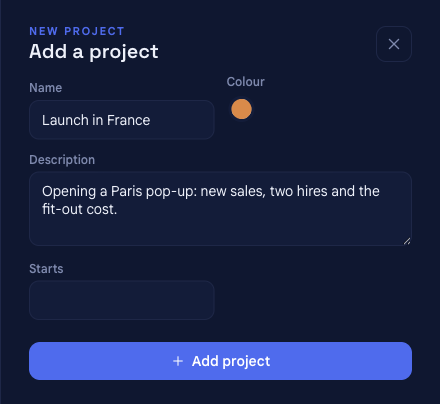
Give the project the essentials:
- Name — what the initiative is, e.g. New factory or Launch in France.
- Colour — a colour so the project is easy to pick out on your timelines.
- Description (optional) — a line on what this initiative is.
- Starts (optional) — a marker for when the initiative begins. It is just a label on the timeline; the sales, costs and hires inside the project carry their own dates.
Select Add project to create it. bluprnts opens the new project straight onto its workbench, ready to fill in.
3. Build the project on its workbench#
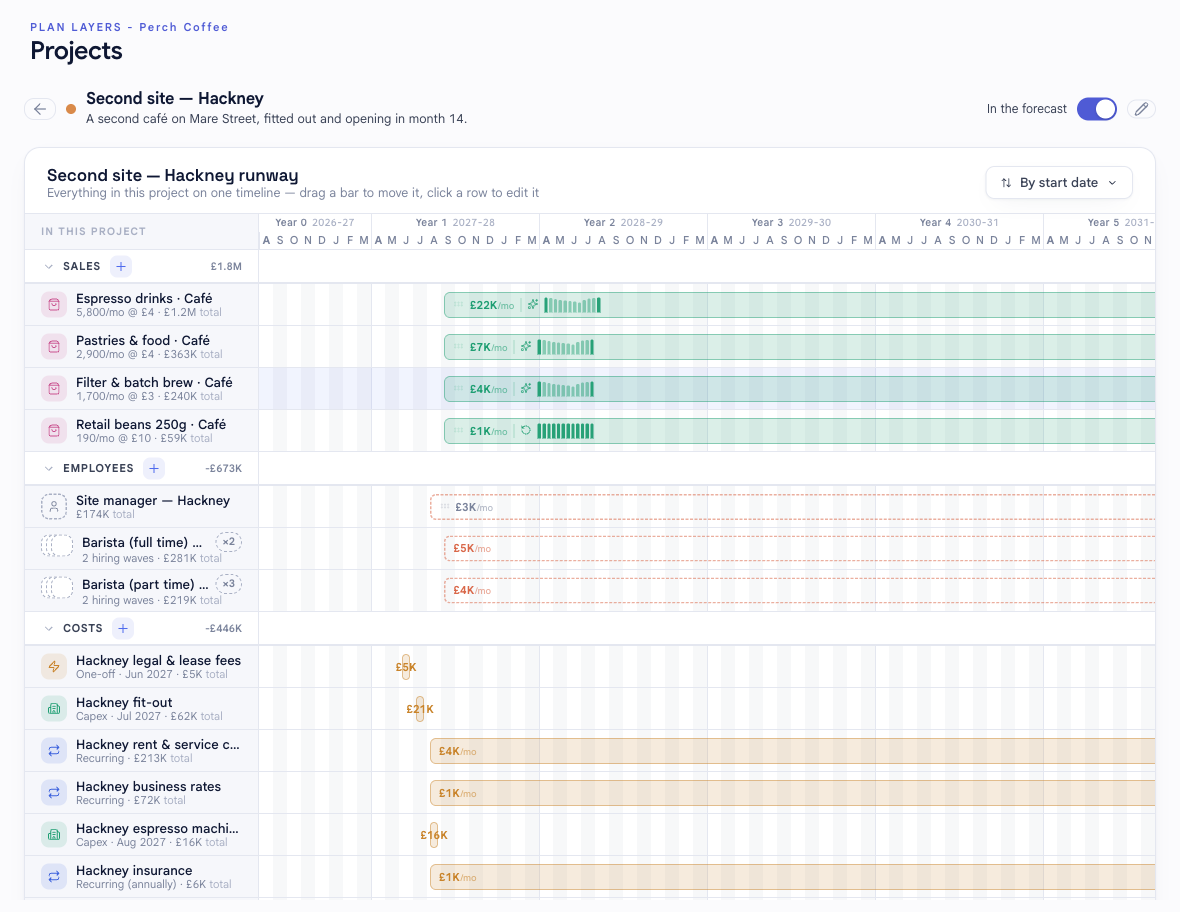
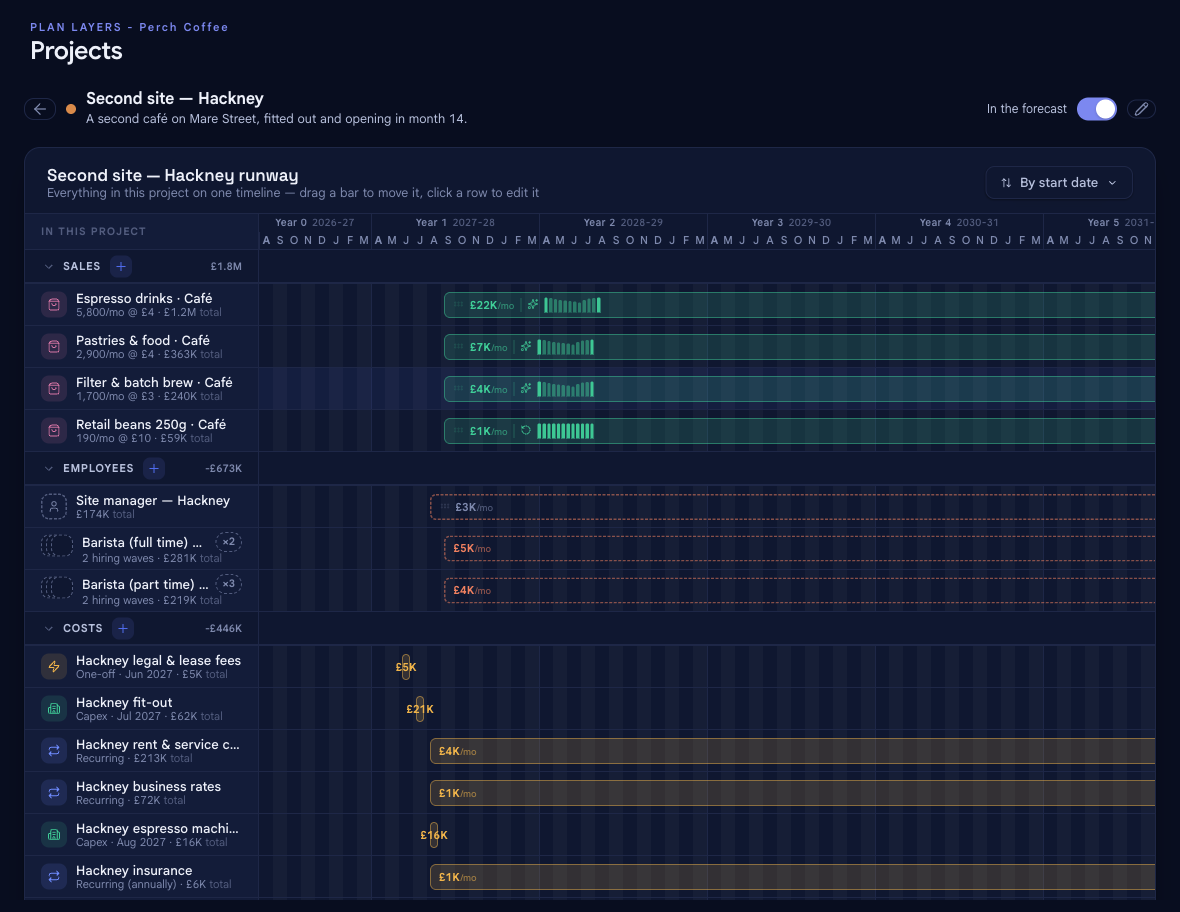
The workbench is where a project comes to life. It has two parts:
- A timeline grouping everything in the project — Sales, Employees, Costs and Financing. Use the + on any section header to add to it. Each opens the same panel you use on the building-block pages, so adding a cost or a hire here works exactly as it does elsewhere — it is just stamped to this project.
- A Products catalogue below the timeline. If the project sells something new, add it here first, then build its sales on the timeline above.
4. Layer it on or off the forecast#
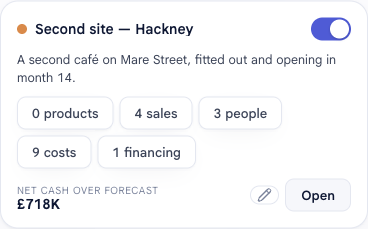
This is what makes a project different from the base plan. The toggle on the project — on its card and at the top of its workbench — layers it in or out of your forecast:
- On — the project's sales, people, costs and financing join your main forecast, and your statements, bank balance and runway reflect it.
- Off — the project is set aside. It stays fully built and visible, but your headline forecast is your base plan as if the project never happened.
Flick it on and off to see the difference the initiative makes, side by side with business as usual — the heart of a what-if.
5. Read its impact#
Each project card shows net cash over forecast — the total cash the project brings in or consumes across the whole forecast — and its workbench carries a project net cash ribbon along the timeline. Both are shown even while the project is toggled off, so you can weigh an initiative before you commit to it.
Edit a project#
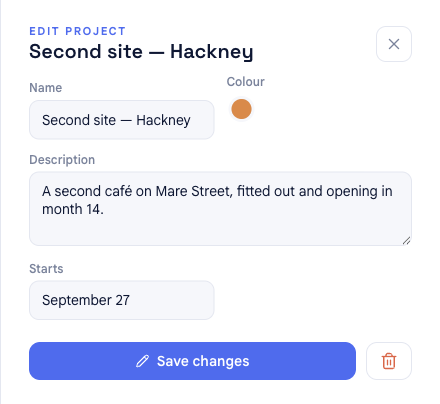
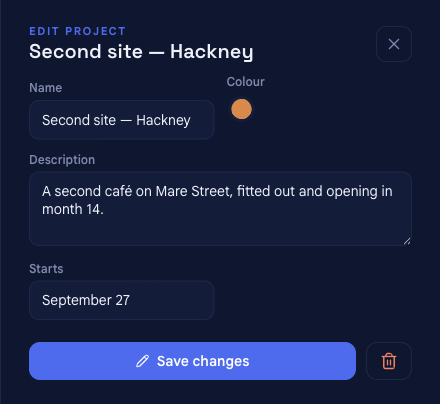
Select the pencil on a project card, or on its workbench header, to reopen the panel headed EDIT PROJECT with its details filled in. Change the name, colour, description or start marker, then select Save changes.
To change what is inside a project — its sales, costs, people or financing — open its workbench and edit the rows there; each opens the same panel as on the building-block pages.
Delete a project#
While editing a project, select the trash icon next to Save changes.
Two things worth knowing before you delete:
- To shelve an initiative rather than erase it, toggle it off instead of deleting. It leaves your forecast but stays built on the shelf, so you can bring it back — or compare against it — whenever you want. This is almost always what you want instead of deleting.
- A project can't be deleted while its products are sold outside the project — bluprnts tells you which, and you point those sales at another product first.
- The base plan cannot be deleted — it is your core business and is always on.
Base plan vs project#
Every company has one base plan and any number of projects. They are built from the same blocks but play different roles:
| | Base plan | Project |
|---|---|---|
| What it is | Your business as it runs today | An initiative layered on top — a what-if |
| In the forecast | Always on | Toggled on or off |
| Built on | The building-block pages (Products, Sales…) | Its own workbench |
| Can be deleted? | No — always present | Yes — and it takes everything in it with it |
Related#
- How forecasts are built — how a project's blocks become your statements.
- Add or edit a sale — building a project's revenue works exactly as it does on the base plan.
- Glossary — definitions for runway, net cash and other terms used here.