
Add or edit an employee
Add, edit or delete an employee in bluprnts — create a role, set its status, salary and start date, and see its fully loaded cost flow into payroll and runway.
In bluprnts you model your team as roles, not payslips. You add each role — its title, department, pay and when it starts — bluprnts works out the fully loaded cost (salary plus employer NI, pension and bonuses) and flows it into your payroll, cashflow and runway, and you reopen any role to change it later.
This guide adds a role from start to finish, then covers editing and deleting one. Adding takes about a minute.
1. Open the Employees page#
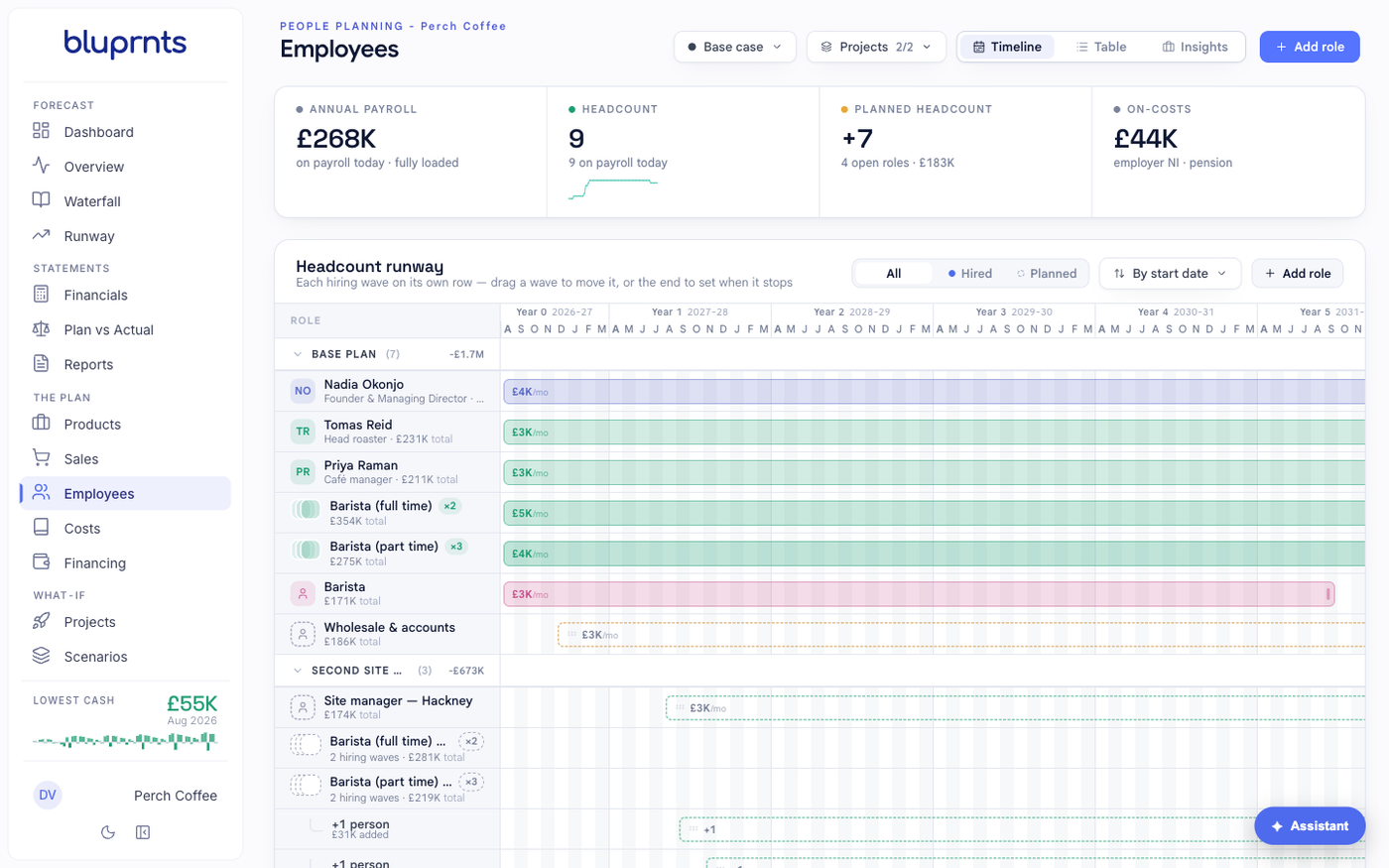
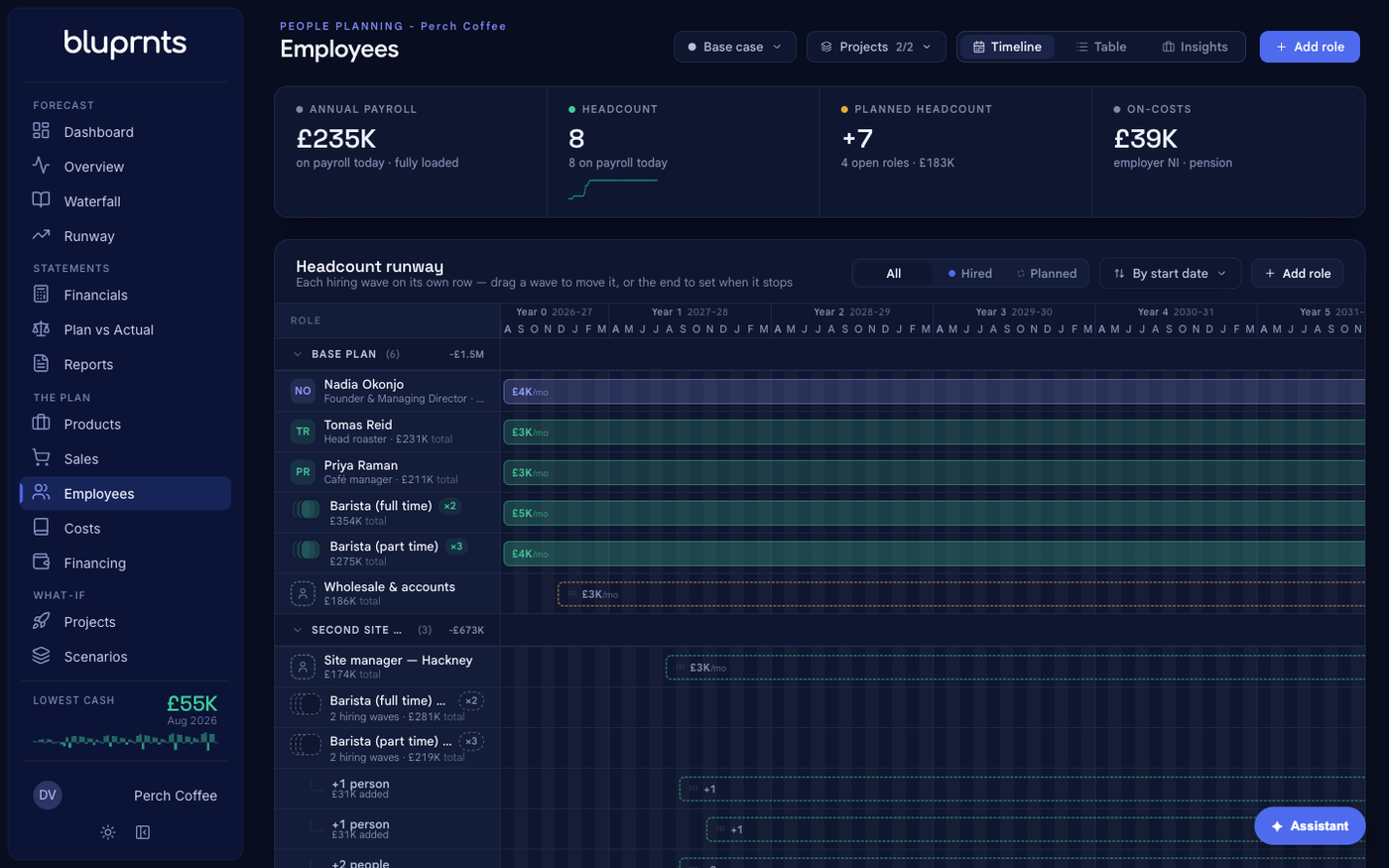
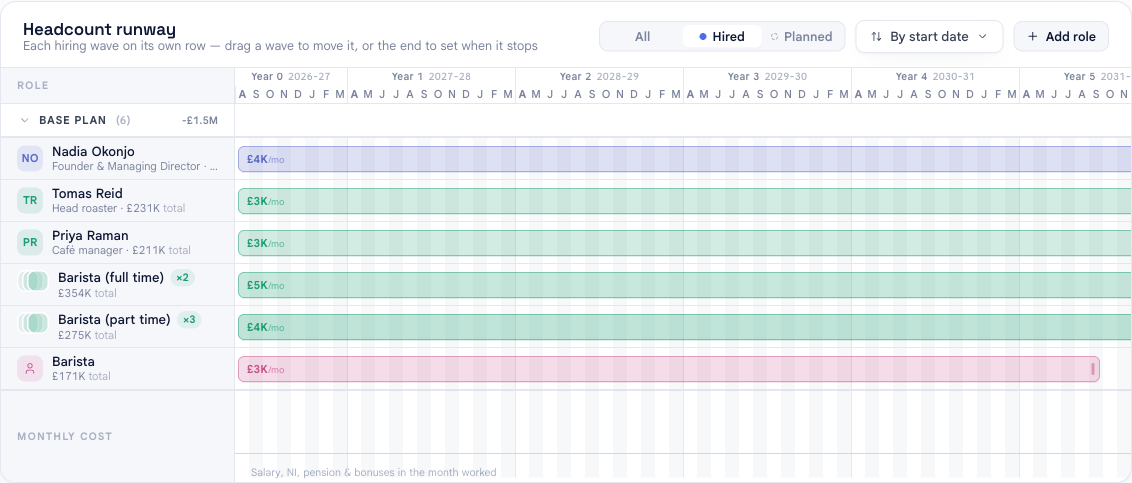
In the left sidebar, under The plan, select Employees. You will see your roles on a timeline, with summary figures across the top — annual payroll, current headcount, planned headcount and on-costs.
Select Add role in the top right to open the role panel.
2. Choose the status: hired or planned#
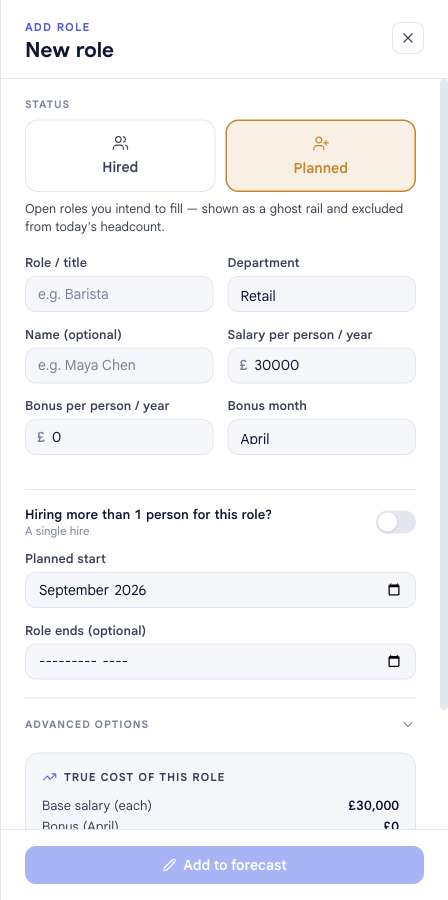
The first choice is whether this role is already on payroll or a future hire:
- Hired — on payroll now. Its cost flows into cashflow from the start date, and it counts toward today's headcount.
- Planned — an open role you intend to fill. Its cost still projects from the planned start date, but it is drawn as a dashed "ghost" rail and left out of today's headcount figure.
3. Describe the role#
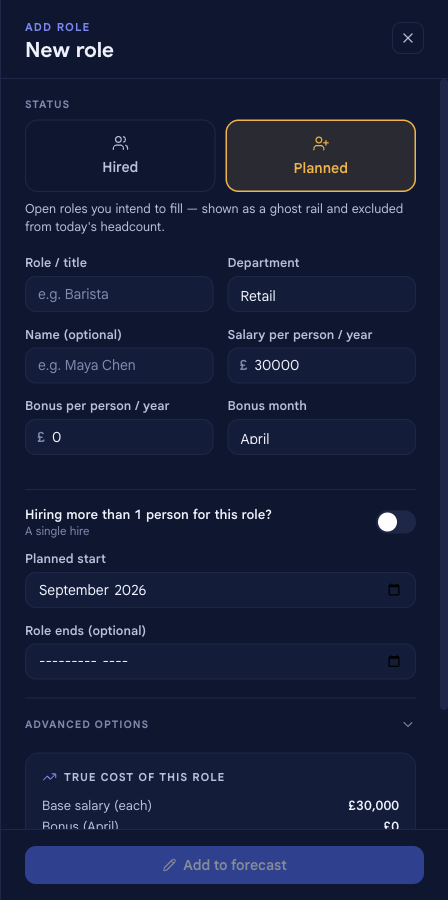
- Role / title — what the role is, e.g. Barista.
- Department — Engineering, Sales, Operations, Retail or Leadership. Each is colour-coded and drives the headcount breakdowns.
- Name (optional) — the person in the seat, if you know them. Leave it blank to keep the row as a generic role.
4. Set the pay#
- Salary per person / year — the base annual salary for one person in this role.
- Bonus per person / year and bonus month — an optional annual bonus and the month it is paid.
bluprnts adds employer on-costs on top of these automatically — you do not enter them here (see step 6 to override the rates).
5. Set the timing and headcount#
By default a role is a single hire — set one start date and you are done.
To hire several people into the same role, turn on Hiring more than 1 person for this role?. This opens a hiring schedule where you add people in waves — for example two baristas in September and one more in January — so headcount ramps the way it really will. Set Role ends if the role is temporary; otherwise it runs to the end of your forecast.
6. Adjust on-costs (optional)#
Open Advanced options to override the employer NI and employer pension percentages for this role. Both default to your company settings, so you only touch them when a role is different.
7. Check the true cost, then save#
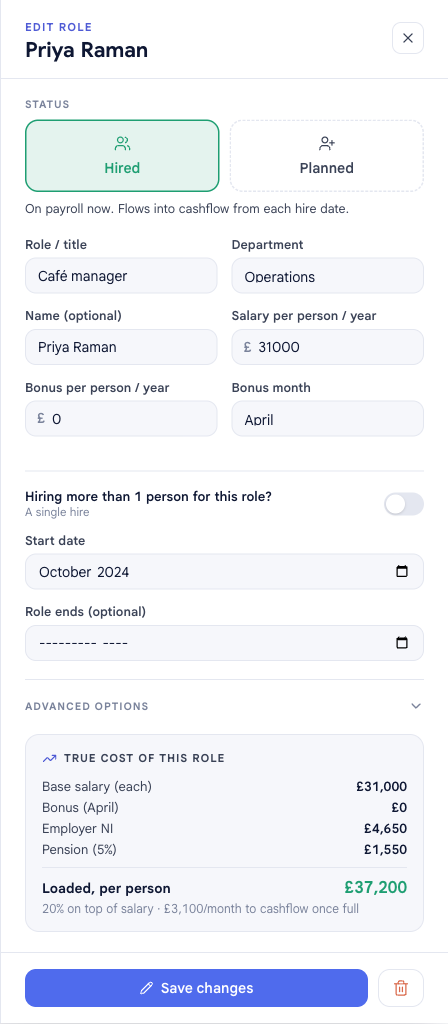
The True cost of this role panel shows the fully loaded number — base salary plus employer NI, pension and bonus — as a loaded, per-person figure and a monthly run-rate. This is what actually leaves your bank, not the headline salary, so it is worth a glance before you save.
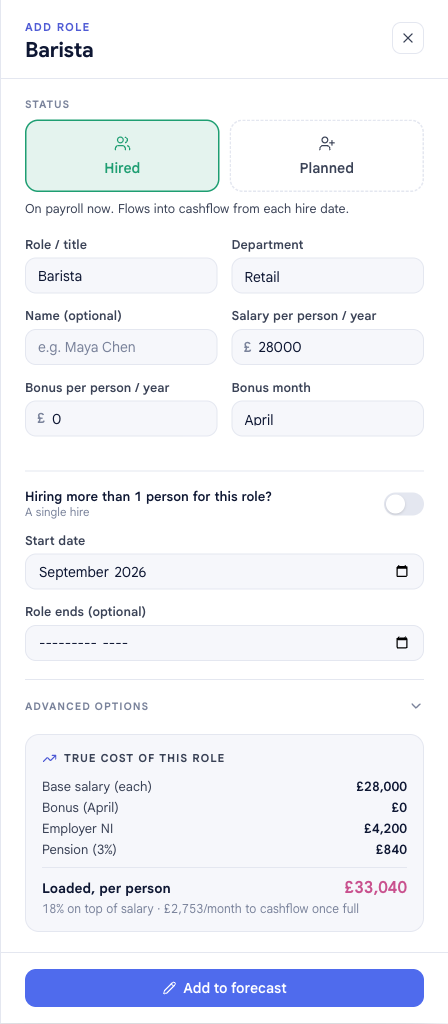
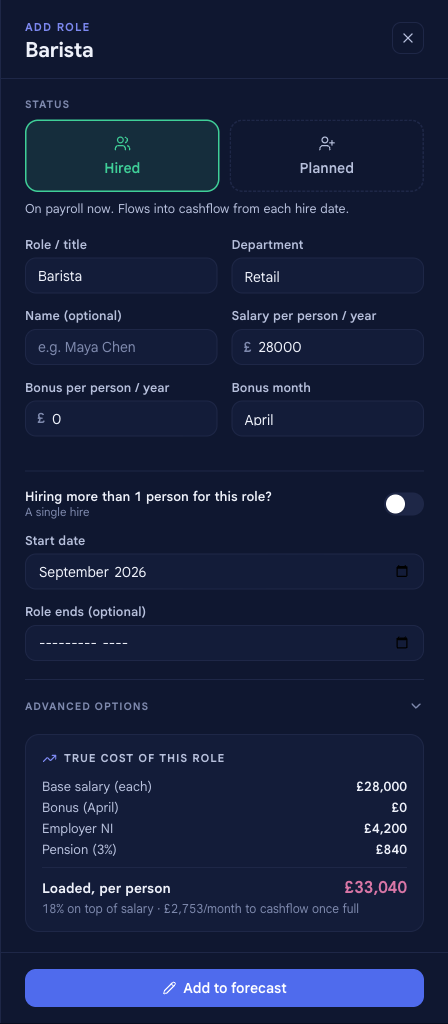
When it looks right, select Add to forecast.
Your role in the forecast#
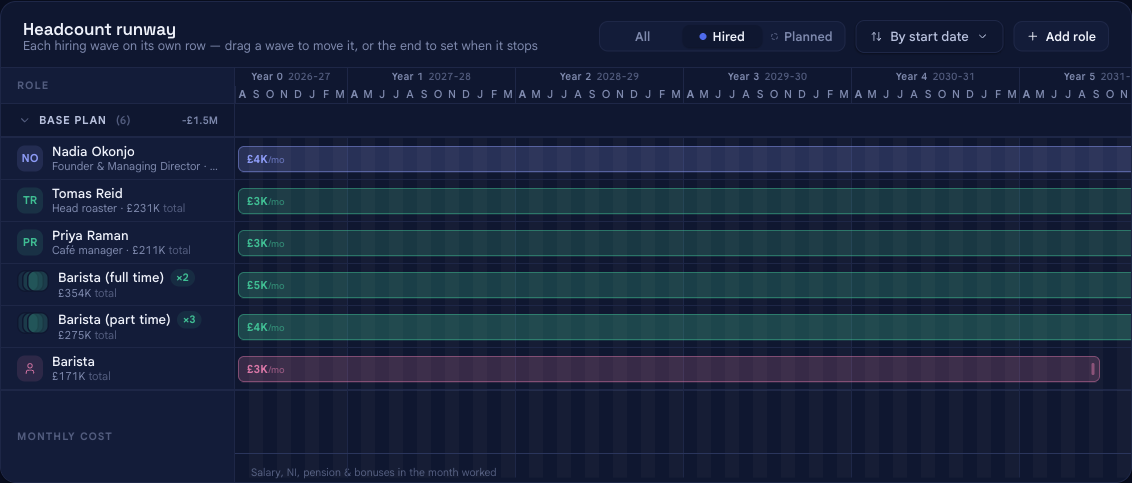
The panel closes and the role appears on the headcount timeline immediately. Everything that depends on it updates at once: annual payroll, headcount, on-costs, and — because people feed the whole model — your profit and loss, cashflow statement, bank balance and runway.
Edit a role#
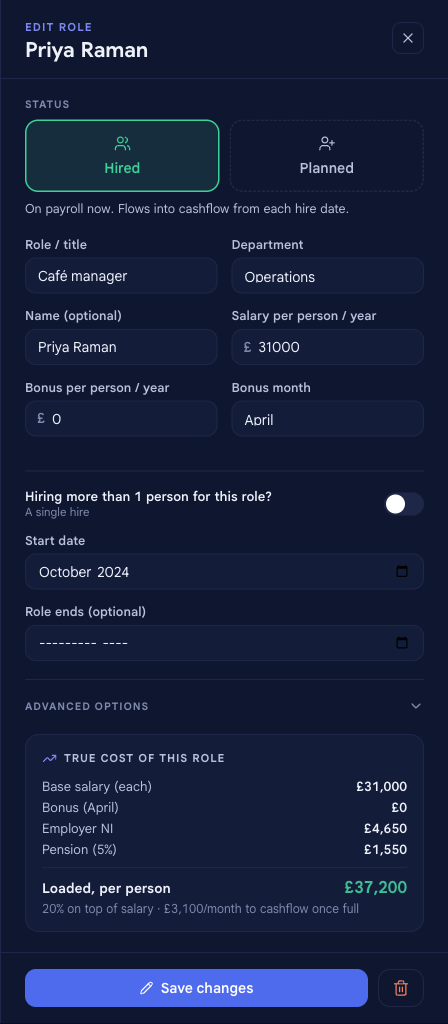
Select any role on the timeline to reopen the same panel, now headed EDIT ROLE, with its values filled in. Change the pay, timing, status or headcount — the True cost of this role panel updates as you go — then select Save changes. The forecast recalculates immediately.
Delete a role#
While editing, select the trash icon next to Save changes to remove the role.
Two things worth knowing before you delete:
- To model someone leaving rather than erasing them, set Role ends instead of deleting. That keeps their cost in the months they actually worked.
- For a role you are only considering, set its status to Planned rather than adding and later deleting — it stays in view without inflating today's headcount, and you can turn it into a real hire when it happens.
Hired vs planned#
The status you pick in step 2 changes how the role is counted and drawn, but not whether it affects the forecast — both do:
| Status | Today's headcount | In the forecast | Drawn as |
|---|---|---|---|
| Hired | Counted | Cost flows from the start date | Solid rail |
| Planned | Excluded | Cost still flows from the planned start | Dashed ghost rail |
This is what lets you model "who we have" and "who we plan to hire" in one place, and compare hiring plans as scenarios without keeping separate spreadsheets.
Related#
- Add a cost — for spending that does not go to an employee.
- How forecasts are built — how people and the other drivers become your statements.
- Glossary — definitions for payroll, on-costs, runway and other terms used here.