
Add or edit a cost
Add, edit or delete a cost in bluprnts — set whether it is recurring, one-off or capex, its amount and timing, and see it flow into your cashflow and runway.
A cost in bluprnts is any money your business spends that does not go to an employee — rent, software, marketing, professional fees, or a one-off purchase. You add costs on the Costs page, reopen any of them to change later, and each one flows straight into your forecast profit and loss, cashflow, bank balance and runway.
This guide adds a cost from start to finish, then covers editing and deleting one. Adding takes about a minute.
1. Open the Costs page#
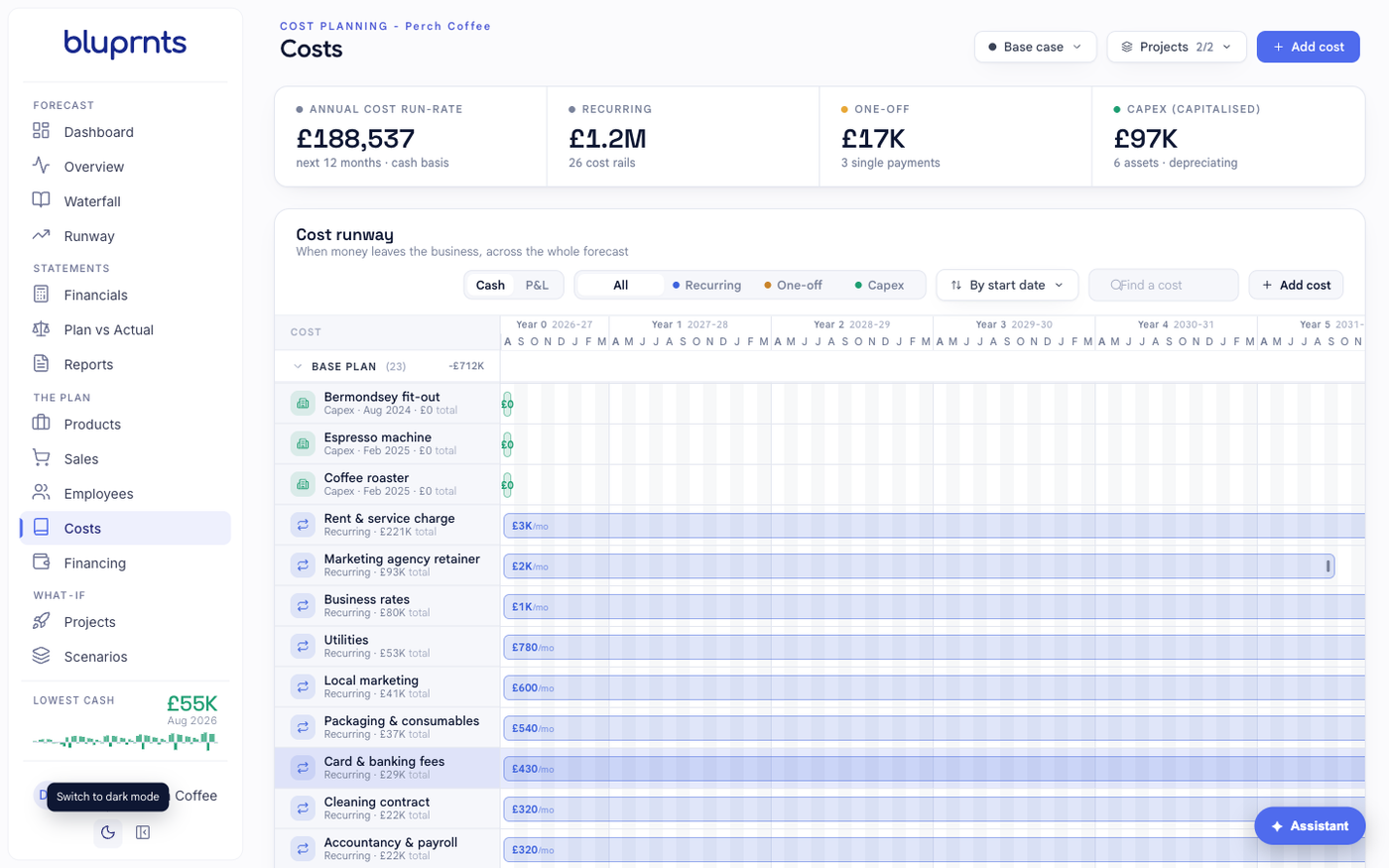
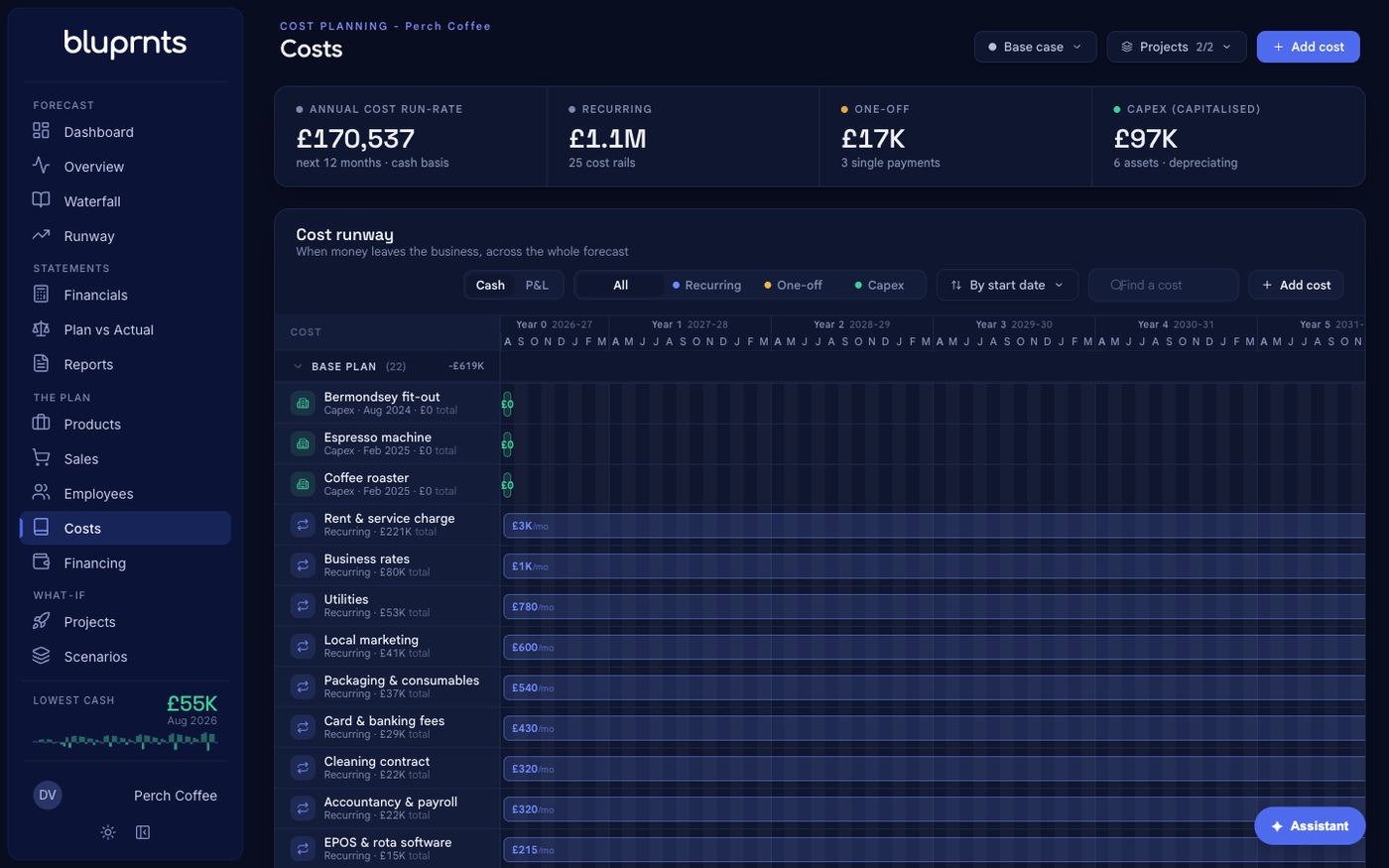
In the left sidebar, under The plan, select Costs. You will see your current costs listed on a timeline, with summary figures — run-rate, recurring, one-off and capex — across the top.
Select Add cost in the top right to open the cost panel.
2. Choose how the cost behaves#
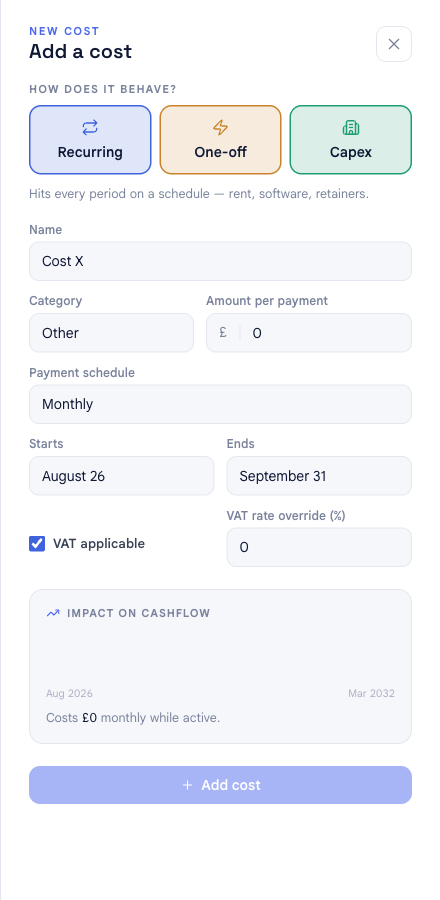
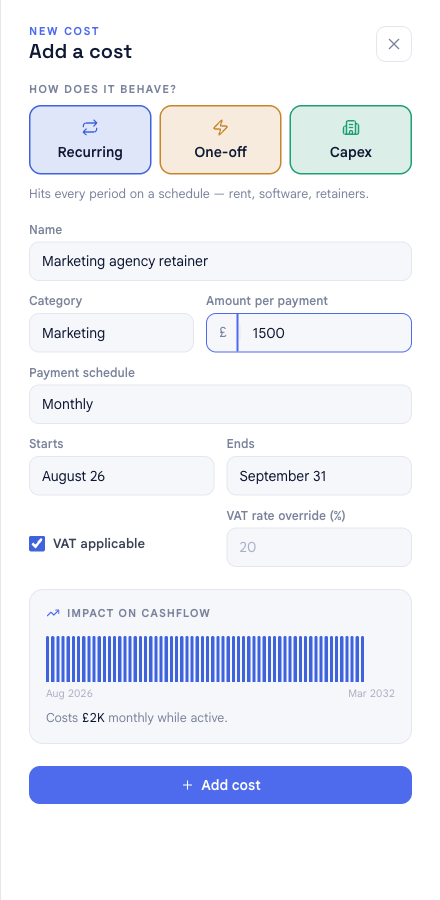
The first choice — How does it behave? — is the most important one, because it decides how the cost hits your cash and your profit. Pick one of three:
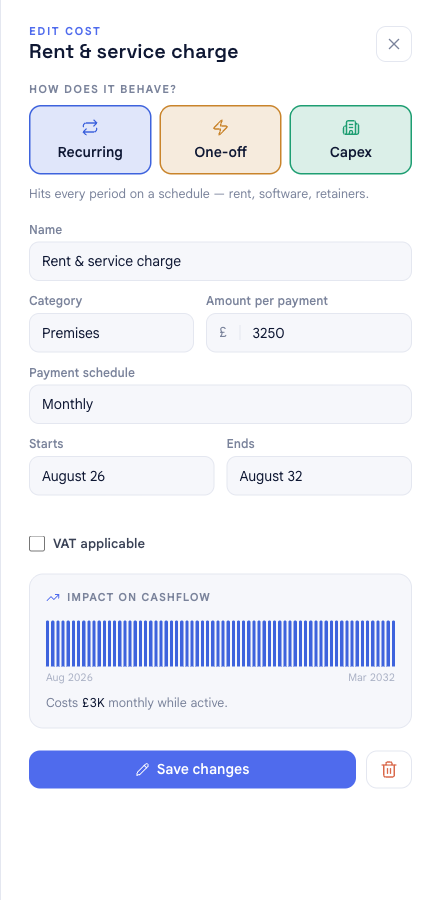
- Recurring — hits every period on a schedule (rent, software, retainers).
- One-off — a single payment on a date (legal fees, a deposit).
- Capex — an asset you buy once, then depreciate across its life.
The fields below adapt to the behaviour you choose. There is a full comparison in The three cost types at the end of this guide.
3. Name it, categorise it, and set the amount#
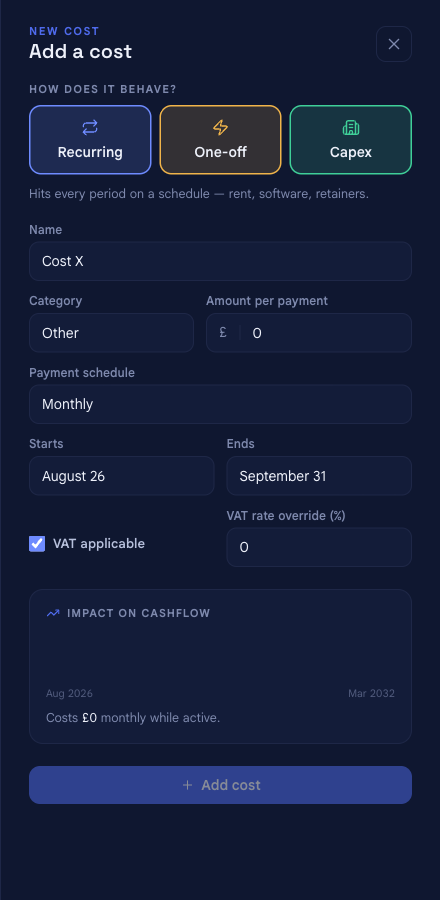
- Name — what you will recognise it by in the list, e.g. Marketing agency retainer.
- Category — the cost's group (Premises, Marketing, Technology, and so on). Categories drive the cost mix breakdown, so pick the closest one.
- Amount — how much each payment is, in your company's currency. For a recurring cost this is the amount per payment, not the annual total.
4. Set the timing#
Timing is where the three behaviours differ:
- Recurring — choose a payment schedule (monthly, quarterly, bi-annually or annually), then a start and end date. The cost repeats on that schedule for as long as it is active.
- One-off — set a single date. The whole amount lands that month.
- Capex — set the purchase date, how many months to depreciate over (how the asset is expensed on the P&L), and how many months to pay over (how the cash actually leaves). These two are independent: you can pay for an asset up front but expense it over years.
5. Add VAT (optional)#
Tick VAT applicable if the cost is subject to VAT. bluprnts uses your company's default VAT rate unless you enter a rate override for this cost. Leave it unticked for anything outside VAT.
6. Check the impact, then save#
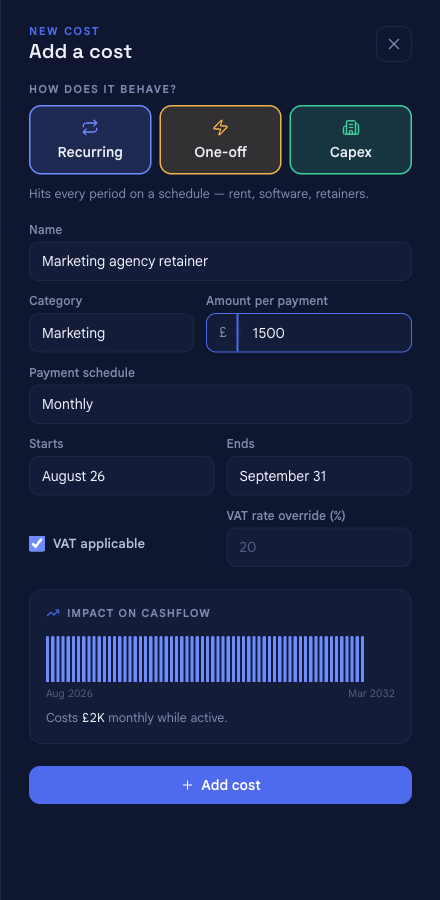
Before you save, the Impact on cashflow preview shows exactly when and how much this cost pulls from your bank across the forecast, with a plain-language summary underneath — so you can sanity-check it without leaving the panel.
When it looks right, select Add cost.
Your cost in the forecast#
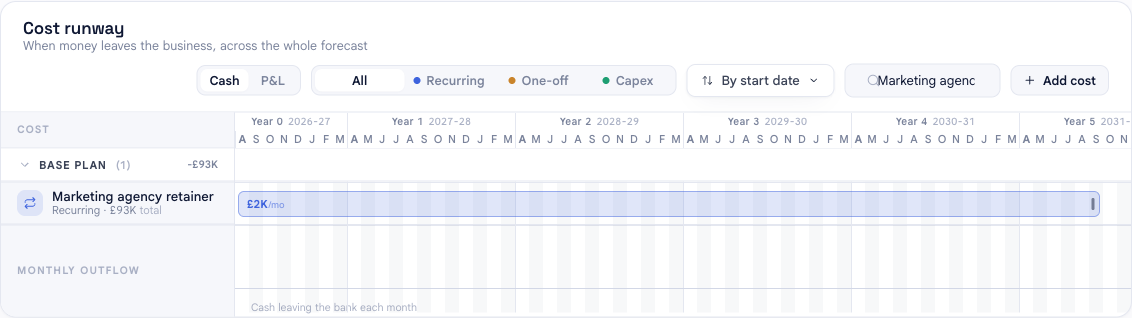
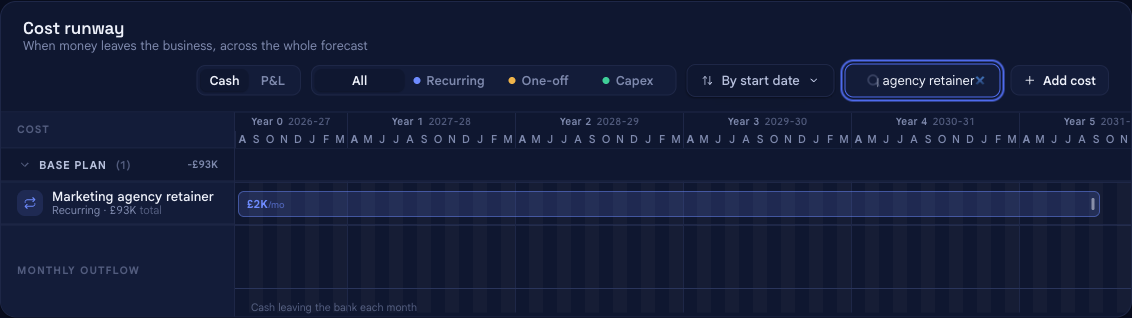
The panel closes and your cost appears in the list immediately. Every figure that depends on it updates in the same moment: the summary totals at the top, the cost mix by category, and — because costs feed the whole model — your profit and loss, cashflow statement, bank balance and runway everywhere else in the app.
That traceability runs both ways: from any figure in your statements you can follow it back to the costs that produced it.
Edit a cost#
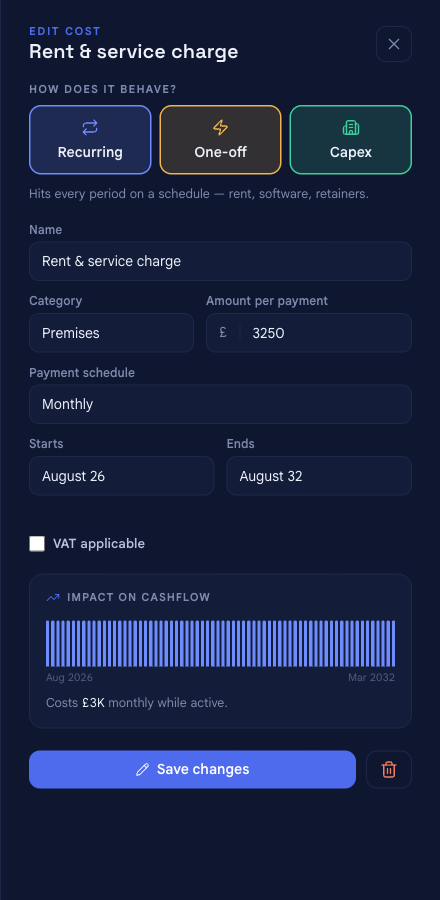
Select any cost — in the timeline or the All costs panel — to reopen the same panel, now headed EDIT COST, with its values filled in. Change anything (behaviour, amount, category, timing, VAT); the Impact on cashflow preview updates as you go. Select Save changes and the forecast recalculates immediately.
Delete a cost#
While editing, select the trash icon next to Save changes to remove the cost.
Two things worth knowing before you delete:
- To stop a recurring cost rather than erase it, set its end date instead of deleting. That keeps the months it was active in your history and only ends it going forward.
- Costs a project added are labelled with the project's name. Change or remove those from the project itself, so its economics stay consistent.
The three cost types#
The behaviour you pick in step 2 controls how a cost affects your cash and your profit differently — this is the difference that matters most when modelling:
| Behaviour | Cash effect | Profit & loss effect | Use it for |
|---|---|---|---|
| Recurring | Leaves the bank every period on your schedule, while active | Charged in full each period | Rent, software, retainers, subscriptions |
| One-off | A single payment on one date | Charged once, on that date | Legal fees, a deposit, a launch campaign |
| Capex | Paid once, or spread over a few months — set separately | Capitalised and depreciated across the asset's life | Equipment, fit-outs, vehicles — assets you keep |
Related#
- How forecasts are built — how costs and the other drivers become your statements.
- Glossary — definitions for capex, depreciation, runway and other terms used here.